












Trackolap logo
OneDrive Spreadsheet and TrackOlap integration

Connect your OneDrive spreadsheets to TrackOlap with just one click!

Automate your TrackOlap Tasks with OneDrive Spreadsheets
Capture, Manage & Push Task Data to Excel Workbooks in OneDrive

Auto-Push Task Data by Linking OneDrive Spreadsheets with TrackOlap
Use TrackOlap’s OneDrive spreadsheet integration to automate data transfers and manage completed tasks without manual updates. Push task data to Excel workbooks stored in OneDrive, map TrackOlap fields to the right worksheet columns, and keep operational records centralized, accurate, and ready for reporting.

The integration gives teams a dependable view of task progress in the Microsoft 365 tools they already use. Project managers, sales teams, and operations leaders can monitor updates, analyze trends, and share workbook-based reports while TrackOlap keeps every configured row in sync.
Why OneDrive Spreadsheet + TrackOlap
Connect, Automate, Map, and Push Data with TrackOlap Features
Connect Microsoft 365 Accounts and OneDrive Workbooks
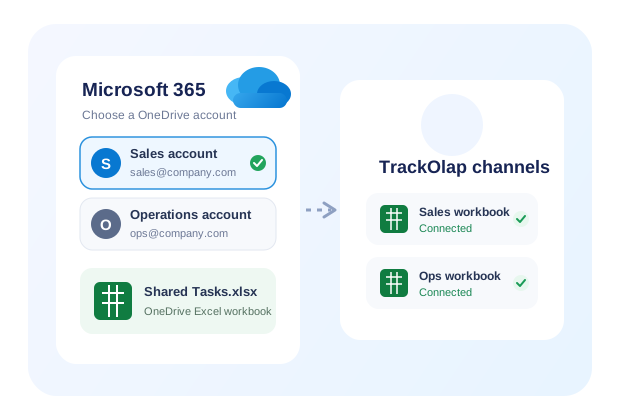
Create connection channels for the Microsoft 365 accounts your business uses, then select the OneDrive location and Excel workbook that should receive TrackOlap data. Clear connection names make it easy for admins to manage different teams, workbooks, and workflows from one place.
Set Up Multiple Connection Channels
Connect Microsoft 365 and OneDrive
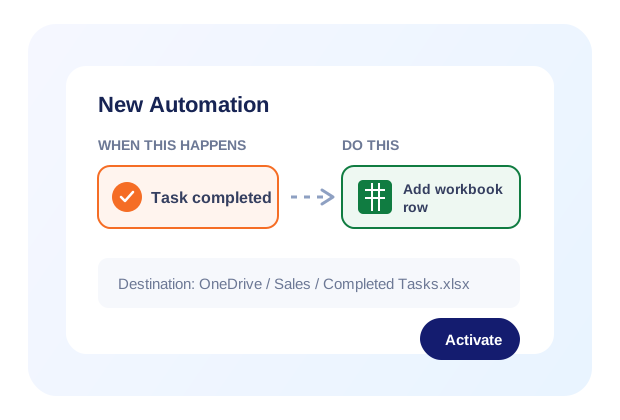
Create an Automation to Push Data into OneDrive Spreadsheets
After connecting OneDrive, create an automation with a TrackOlap event such as “Task Completed” as the trigger and “Add Row to OneDrive Spreadsheet” as the action. Choose the task form, connected workbook, and target worksheet, then map each task field to the appropriate spreadsheet column.
Trigger-Based Automation
Push Task Data to Excel Workbooks
Manage Automated Task Data in the Connected Workbook
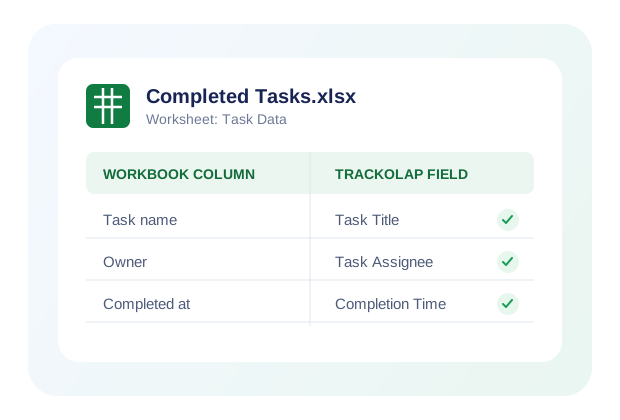
Use TrackOlap’s sheet-data mapping to control how completed task information is organized in the selected Excel worksheet. Map columns to values such as task name, assignee, status, completion time, or custom form responses, and update the configuration whenever reporting requirements change.
Manage Worksheet Column Mapping
Auto-Push Data to the Connected Workbook
Connect Microsoft 365 Accounts and OneDrive Workbooks
Create connection channels for the Microsoft 365 accounts your business uses, then select the OneDrive location and Excel workbook that should receive TrackOlap data. Clear connection names make it easy for admins to manage different teams, workbooks, and workflows from one place.
Connect Microsoft 365 Accounts and OneDrive Workbooks
Create an Automation to Push Data into OneDrive Spreadsheets
After connecting OneDrive, create an automation with a TrackOlap event such as “Task Completed” as the trigger and “Add Row to OneDrive Spreadsheet” as the action. Choose the task form, connected workbook, and target worksheet, then map each task field to the appropriate spreadsheet column.
Create an Automation to Push Data into OneDrive Spreadsheets
Manage Automated Task Data in the Connected Workbook
Use TrackOlap’s sheet-data mapping to control how completed task information is organized in the selected Excel worksheet. Map columns to values such as task name, assignee, status, completion time, or custom form responses, and update the configuration whenever reporting requirements change.
Manage Automated Task Data in the Connected Workbook
Business Advantages of
Integrating OneDrive with TrackOlap
Automated Data Sync

Automated Data Sync

Centralized Workbook Management

Centralized Workbook Management

Customizable Field Mapping

Customizable Field Mapping

Real-Time Updates

Real-Time Updates

Enhanced Productivity

Enhanced Productivity

Accurate Data Handling

Accurate Data Handling

Improved Reporting & Insights

Improved Reporting & Insights

Complete Automation

Complete Automation

Automated Data Sync

Automated Data Sync

Centralized Workbook Management

Centralized Workbook Management

Customizable Field Mapping

Customizable Field Mapping

Real-Time Updates

Real-Time Updates

Enhanced Productivity

Enhanced Productivity

Accurate Data Handling

Accurate Data Handling

Improved Reporting & Insights

Improved Reporting & Insights

Complete Automation

Complete Automation

Who Can Benefit from TrackOlap and OneDrive Spreadsheet Integration?
TrackOlap + OneDrive spreadsheets simplify your workflow if you are
A sales or field team that needs completed task data automatically added to shared Excel workbooks for real-time tracking and performance analysis.
A project manager who wants to reduce manual updates, centralize task information, and keep stakeholders aligned through familiar Microsoft 365 reports.
An operations team that needs consistent worksheet records for reporting, audits, forecasting, and faster data-driven decisions.

Why Choose TrackOlap for OneDrive Spreadsheet Integration

Automate Your Work Process and Improve Operational Efficiency with TrackOlap

Without TrackOlap

With TrackOlap

Manual Data Entry
Automated Task Completion Data Push
Disconnected Workflows
Connected Microsoft 365 Workflows
Time-Consuming Workbook Updates
Real-Time Workbook Updates
No Event-Based Automation
Custom Trigger-Based Automation
Inconsistent Column Mapping
Accurate Worksheet Field Mapping
Scattered Task Information
Centralized Task Management
High Administrative Load
Reduced Administrative Overhead
Delayed Reports and Decisions
Faster Reporting and Decisions
Duplicate or Missing Records
Consistent Operational Records
Separate Account Management
Multi-Account Connection Support

Without TrackOlap

Manual Data Entry
Disconnected Workflows
Time-Consuming Workbook Updates
No Event-Based Automation
Inconsistent Column Mapping
Scattered Task Information
High Administrative Load
Delayed Reports and Decisions
Duplicate or Missing Records
Separate Account Management

With TrackOlap

Automated Task Completion Data Push
Connected Microsoft 365 Workflows
Real-Time Workbook Updates
Custom Trigger-Based Automation
Accurate Worksheet Field Mapping
Centralized Task Management
Reduced Administrative Overhead
Faster Reporting and Decisions
Consistent Operational Records
Multi-Account Connection Support
Automate, Manage & Elevate, Your Sales Process With TrackOlap
Have Any Queries?
Frequently Asked Questions

Create a new connection channel in Admin Settings, authorize your Microsoft 365 account, and select the OneDrive workbook and worksheet you want to use.

Yes. TrackOlap lets you map task fields to specific worksheet columns so the connected workbook follows your reporting structure.

Yes. Configure “Task Completed” as the trigger and the OneDrive spreadsheet row action as the automation step, then activate the workflow.

Use the automation controls in Admin Settings to disable the workflow temporarily or delete it from the action column when it is no longer needed.

TrackOlap stops sending new task data to that OneDrive workbook. Existing workbook data remains in OneDrive, and automated transfers resume after the account is reconnected and the workflow is enabled.
Still have any Queries ?
Share your queries & our representatives will get in touch with you